After adding a user or group to the Hyper-V Administrators local group on a host, you are still unable to connect to the host with Windows 10 Hyper-V Manager.
The error is as follows:
"You do not have the required permission to complete this task. Contact the Administrator of the authorization policy for the computer 'SERVERNAME'."
This is due to a change in the way Hyper-V manager connects to the server in Windows 10 / Server 2016.
To re-enable the functionality, the user or group needs to be added to the "WinRMRemoteWMIUsers__" and "Hyper-V Administrators" groups. It also needs to be given the "Enable Account" and "Remote Enable" permissions to the root\interop WMI namespace.
To do this in the GUI, open Computer Management and add the user or group to the "WinRMRemoteWMIUsers__" group. On 2016 this group doesn't exist, I added the user/group to the "Remote Management Users" group on my 2016 hosts.
Also, open "Services and Applications -> WMI Control" properties. Click the security tab, open Root\interop and click the Security button. Add your user or group and check Remote Enable.
To do this with PowerShell, execute the following script (needs to be done with Administrator privileges)
For Windows Server 2016 Hyper-V Servers you will need to change the group "WinRMRemoteWMIUsers__" to "Remote Management Users" in the above script.
For more information on the permissions code please see the below post, I have used only the specific lines required for enabling the specific permissions I require. The following post has a more generic script for WMI permissions:
http://vniklas.djungeln.se/2012/08/22/set-up-non-admin-account-to-access-wmi-and-performance-data-remotely-with-powershell/
Thursday, 24 November 2016
Wednesday, 23 November 2016
What is 'Double Hop Authentication' in Windows and why should I care?
If you've tried to use Invoke-Command to run commands with credentials on a remote machine and received unexpected Access Denied messages then you may have run across Double Hop Authentication issues.
If the command you tried to run needs to pass credentials to a second machine in order to execute, then you will likely receive an Access Denied message like the following.
You do not have permission to perform the operation. Contact your administrator if you believe you should have
permission to perform this operation.
+ CategoryInfo : PermissionDenied: (:) [Get-VM], VirtualizationOperationFailedException
+ FullyQualifiedErrorId : AccessDenied,Microsoft.HyperV.PowerShell.Commands.GetVMCommand
+ PSComputerName : HYPERV1
The most recent example I've seen is when attempting to run System Center Configuration Manager PowerShell commands on a remote machine using Jenkins. The error message above isn't much help, but since I'm running Invoke-Command with the -Credentials and -Computer parameters - and then trying to authenticate to a further machine - 'Double Hop' is probably the issue.
Another example is trying to run something like the following:
Invoke-Command -Computer hyperv1 -Credential $Cred -ScriptBlock { Get-VM -ComputerName hyperv2 }
The server hyperv1 will attempt to authenticate to hyperv2, but it is not authorised to cache and forward the credentials.
How can I fix it?
In order to be able to pass credentials via a remote machine to another machine, you need to configure CredSSP (Credential Security Service Provider.) This does have security issues, since you are trusting the remote machine to cache and re-send your credentials to the second machine. You should only configure this for machines you fully trust.
To configure your machine to use CredSSP perform the following steps in an administratively elevated PowerShell console.
Client Steps:
Run the get command to view the current allowed list. If it is empty then you can run the enable command with a single machine. If it contains other machines you'll need to combine your machine with the existing list and run the enable command. The list is comma delimited. This setting is also available in Group Policy: Computer Configuration -> Administrative Templates -> Credentials Delegation -> Allow delegating fresh credentials.
Get-WSManCredSSP
Enable-WSManCredSSP -Role "Client" -DelegateComputer "server.domain.com"
Server Steps:
Enable-WSManCredSSP -Role "Server"
If you haven't already configured an HTTPS listener on the server you can do so with this command.
winrm quickconfig -transport:https
There are pre-requesites to this such as having a valid not self-signed certificate for the FQDN of the server machine.
Once completed you should now be able to re-run your command specifying -Authentication CredSSP
An example of the Hyper-V command that didn't work before is:
Invoke-Command -Computer hyperv1 -Credential $Cred -ScriptBlock { Get-VM -ComputerName hyperv2 } -Authentication CredSSP
Further reading on the PowerShell command for configuring this here.
The classic way to configure this is detailed on MSDN here.
If the command you tried to run needs to pass credentials to a second machine in order to execute, then you will likely receive an Access Denied message like the following.
You do not have permission to perform the operation. Contact your administrator if you believe you should have
permission to perform this operation.
+ CategoryInfo : PermissionDenied: (:) [Get-VM], VirtualizationOperationFailedException
+ FullyQualifiedErrorId : AccessDenied,Microsoft.HyperV.PowerShell.Commands.GetVMCommand
+ PSComputerName : HYPERV1
The most recent example I've seen is when attempting to run System Center Configuration Manager PowerShell commands on a remote machine using Jenkins. The error message above isn't much help, but since I'm running Invoke-Command with the -Credentials and -Computer parameters - and then trying to authenticate to a further machine - 'Double Hop' is probably the issue.
Another example is trying to run something like the following:
Invoke-Command -Computer hyperv1 -Credential $Cred -ScriptBlock { Get-VM -ComputerName hyperv2 }
The server hyperv1 will attempt to authenticate to hyperv2, but it is not authorised to cache and forward the credentials.
How can I fix it?
In order to be able to pass credentials via a remote machine to another machine, you need to configure CredSSP (Credential Security Service Provider.) This does have security issues, since you are trusting the remote machine to cache and re-send your credentials to the second machine. You should only configure this for machines you fully trust.
To configure your machine to use CredSSP perform the following steps in an administratively elevated PowerShell console.
Client Steps:
Run the get command to view the current allowed list. If it is empty then you can run the enable command with a single machine. If it contains other machines you'll need to combine your machine with the existing list and run the enable command. The list is comma delimited. This setting is also available in Group Policy: Computer Configuration -> Administrative Templates -> Credentials Delegation -> Allow delegating fresh credentials.
Get-WSManCredSSP
Enable-WSManCredSSP -Role "Client" -DelegateComputer "server.domain.com"
Server Steps:
Enable-WSManCredSSP -Role "Server"
If you haven't already configured an HTTPS listener on the server you can do so with this command.
winrm quickconfig -transport:https
There are pre-requesites to this such as having a valid not self-signed certificate for the FQDN of the server machine.
Once completed you should now be able to re-run your command specifying -Authentication CredSSP
An example of the Hyper-V command that didn't work before is:
Invoke-Command -Computer hyperv1 -Credential $Cred -ScriptBlock { Get-VM -ComputerName hyperv2 } -Authentication CredSSP
Further reading on the PowerShell command for configuring this here.
The classic way to configure this is detailed on MSDN here.
Labels:
Authentication,
CredSSP,
Double Hop,
Powershell
Monday, 21 November 2016
Azure Resource Manager Load Balancer setup with Terraform
In previous posts, I showed how to configure the basics for using Terraform on Azure Resource Manager and also how to set up WinRM over HTTPS for configuring the servers once built,
In this post I take the configuration a step further and create a Load Balancer with an Availability Set. I use the load balancer public IP to NAT into the VMs using WinRM to execute a Powershell DSC script to install the IIS feature.
Here is a sample of the NAT rule used:
The VM and it's components use the 'count' property in Terraform in order to build multiple VMs of the same configuration. Whenever the VM's individual properties are required ${count.index} can be used to reference the specific object within the configuration. In the above gist, I use "${count.index + 10000}" to assign a unique WinRM port on the load balancer for each VM.
The configuration of the load balancer requires a field in the NIC for each VM which adds it into the load balancer's back end network.
Within the load balancer file there are configurations for it's public IP, front and back-end of the load balancer, a couple of rules for web traffic and a probe to check which machines are functional. Here is a the load balancer configuration:
The full source for this can be downloaded from GitHub here.
In this post I take the configuration a step further and create a Load Balancer with an Availability Set. I use the load balancer public IP to NAT into the VMs using WinRM to execute a Powershell DSC script to install the IIS feature.
Here is a sample of the NAT rule used:
The VM and it's components use the 'count' property in Terraform in order to build multiple VMs of the same configuration. Whenever the VM's individual properties are required ${count.index} can be used to reference the specific object within the configuration. In the above gist, I use "${count.index + 10000}" to assign a unique WinRM port on the load balancer for each VM.
The configuration of the load balancer requires a field in the NIC for each VM which adds it into the load balancer's back end network.
Within the load balancer file there are configurations for it's public IP, front and back-end of the load balancer, a couple of rules for web traffic and a probe to check which machines are functional. Here is a the load balancer configuration:
The full source for this can be downloaded from GitHub here.
Labels:
Azure,
Azure Resource Manager,
Load Balancer,
Terraform
Friday, 18 November 2016
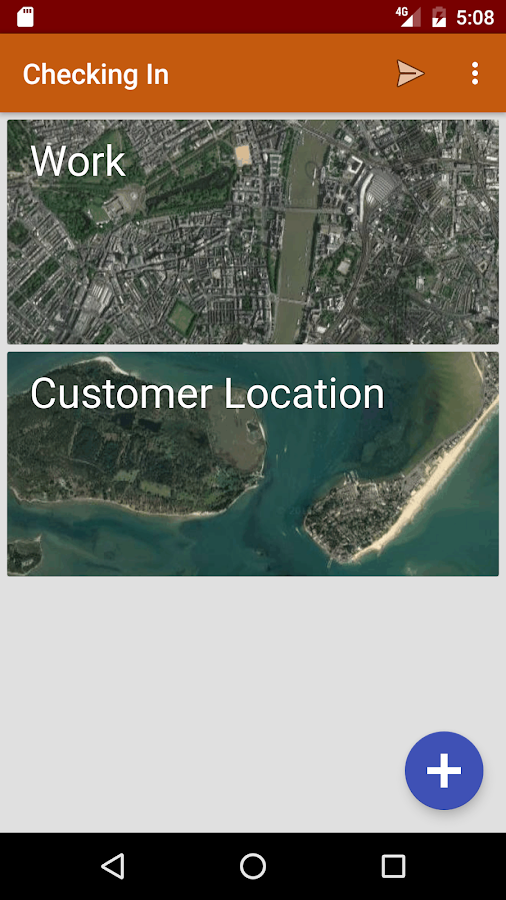
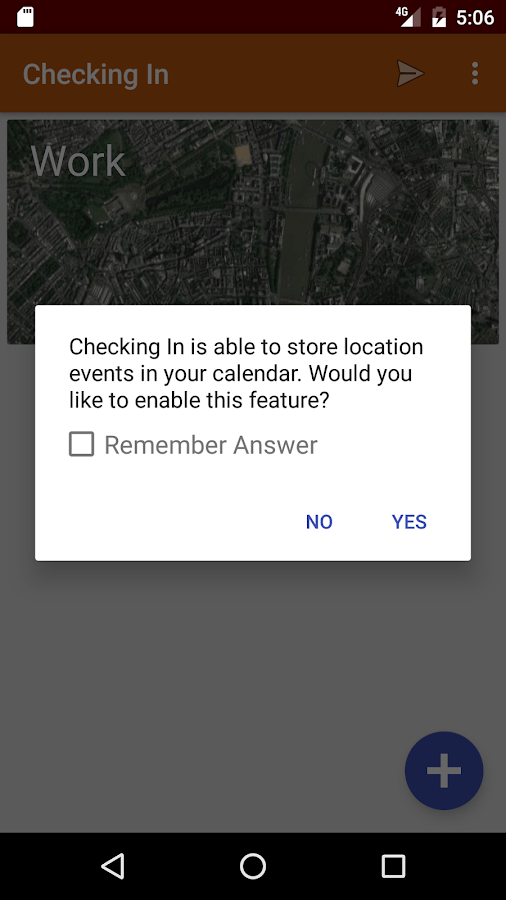
First App on Google Play! - Checking In
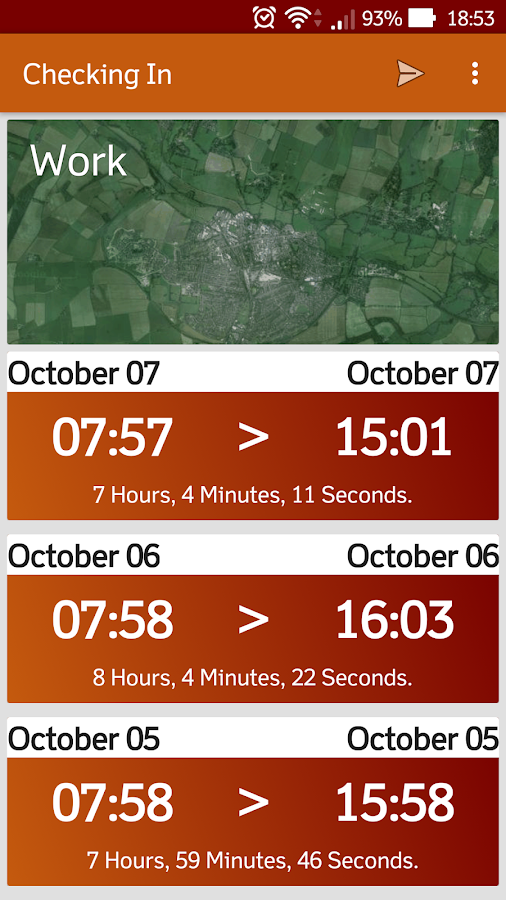
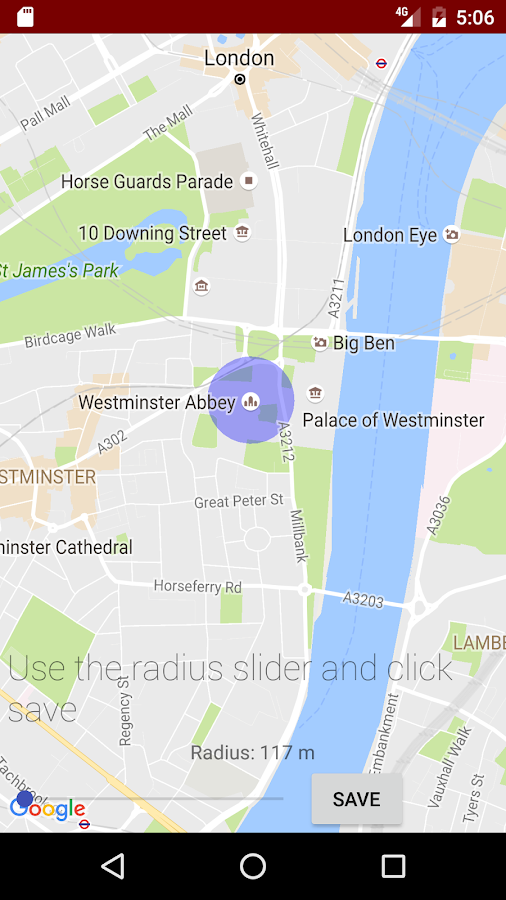
Checking In helps you record your flexi time or billable hours on site. Set a location using the map and Checking In will record all the time you spend on location.
Checking in can show a notification when you arrive or leave a location.
You can view your location history in the application, by syncing with a Google Calendar or by sending a .CSV file with your times, dates and locations.
To sync with Google Calendar, it is suggested to create a separate named calendar in your account so that checking in events are kept separate from your normal events and can be managed separately. You can do this in the Google Calendar web application at https://calendar.google.com
Google Play and the Google Play logo are trademarks of Google Inc.
Wednesday, 16 November 2016
Configuring Terraform to use WinRM over HTTPS for remote management of Windows servers on Azure Resource Manager
Now that the title is out of the way, I'll get on with explaining how I got this working. I tried several ways of getting the WinRM service configured to use HTTPS in Azure Resource Manager using Terraform.
I explained in a previous post how to get the basics up and running.
There appear to be a few ways to do this in Terraform but I've only found one that works. I attempted to use the built in WinRM configuration option, but this requires creating a certificate locally and then uploading it to an Azure Key Vault. This sounds like a good option, but it can't yet be done purely in Terraform (I think!)
I've also tried creating a self signed certificate on the fresh build VM using the Windows FirstLogonCommands. This proved difficult due to all sorts of timing and character interpolation issues.
The working option is to create a PowerShell script, add in some variables from Terraform and then inject that script into the VM at creation time using the custom_data field as part of the os_profile section.
First, I created the Deploy.ps1 with no parameters which will create the local self-signed certificate and setup WinRM and a firewall rule.
Second, I created the FirstLogonCommands.xml which gets inserted into the Windows unattend.xml and runs the commands at first logon.
Third, in the Virtual Machine configuration of the .tf file, the vm is configured to inject the Deploy.ps1 data into the VM with parameters from Terraform. The VM is configured to automatically log on once which runs the FirstLogonCommands. This should then rename the custom_data blob back to Deploy.ps1, run it and configure WinRM!
The full example can be downloaded from my GitHub.
Part 3, Configuring an Azure RM load balancer is here.
I explained in a previous post how to get the basics up and running.
There appear to be a few ways to do this in Terraform but I've only found one that works. I attempted to use the built in WinRM configuration option, but this requires creating a certificate locally and then uploading it to an Azure Key Vault. This sounds like a good option, but it can't yet be done purely in Terraform (I think!)
I've also tried creating a self signed certificate on the fresh build VM using the Windows FirstLogonCommands. This proved difficult due to all sorts of timing and character interpolation issues.
The working option is to create a PowerShell script, add in some variables from Terraform and then inject that script into the VM at creation time using the custom_data field as part of the os_profile section.
First, I created the Deploy.ps1 with no parameters which will create the local self-signed certificate and setup WinRM and a firewall rule.
Second, I created the FirstLogonCommands.xml which gets inserted into the Windows unattend.xml and runs the commands at first logon.
Third, in the Virtual Machine configuration of the .tf file, the vm is configured to inject the Deploy.ps1 data into the VM with parameters from Terraform. The VM is configured to automatically log on once which runs the FirstLogonCommands. This should then rename the custom_data blob back to Deploy.ps1, run it and configure WinRM!
The full example can be downloaded from my GitHub.
Part 3, Configuring an Azure RM load balancer is here.
Sunday, 6 November 2016
Creating Windows images on Azure Resource Manager with Packer
Building from the last post about creating infrastructure on Azure Resource Manager with Terraform, I wanted to try out packer on the platform for creating Windows Server images.
Getting this running requires the following:
In much the same way as Terraform, you will need to create an application in Azure and assign permissions so that Packer can create resources to build your image.
Packer requires a resource group and storage account to store your completed images. These can be created any way you choose but will need to be there for the build to complete successfully.
Once the file has been created, run the build with
packer build .\windows-example.json
Packer should then build a keystore and VM in a temporary resource group, run any provisioners configured and then output build artifacts ready to use as a vm template. Once the template is created, you will be given a path to a vhd and an Azure json template for building VMs.
All scripts and files can be found on my GitHub.
Next step for this is to use Terraform to build a VM from the custom image.
Getting this running requires the following:
- choco install -y packer - or manually download and install on windows machine
- Set up application and permissions in Azure
- Add the required environment variables
- Create json file for packer
- packer build windows-example.json
In much the same way as Terraform, you will need to create an application in Azure and assign permissions so that Packer can create resources to build your image.
Unfortunately the official packer script for auth setup doesn't work for me and the commands on the site are specific to Linux. I created a PowerShell script that will create the relevant objects in Azure for authorisation. If you want to manually create these objects you will need to follow the packer documentation here.
Once the API keys have been loaded into environment variables, I created the an example Windows build json file. An important thing to note is the winrm communicator section in the file, without it the build will fail. There is also an official packer example file here.
Packer requires a resource group and storage account to store your completed images. These can be created any way you choose but will need to be there for the build to complete successfully.
Once the file has been created, run the build with
packer build .\windows-example.json
Packer should then build a keystore and VM in a temporary resource group, run any provisioners configured and then output build artifacts ready to use as a vm template. Once the template is created, you will be given a path to a vhd and an Azure json template for building VMs.
All scripts and files can be found on my GitHub.
Next step for this is to use Terraform to build a VM from the custom image.
Wednesday, 2 November 2016
Terraform with Azure Resource Manager
I was intrigued by Terraform for building full environments in Azure. I searched for an example but only found a classic Azure set of Terraform files here. As such, I set about creating an example set to build a small amount of resources in Azure RM using Terraform.
Set up your Azure RM credentials
Before you can deploy any resources in Azure RM you need to set up your Azure credentials with Terraform. I followed the full RM portal guide at the Terraform site and was unable to select my custom application to add the role. Once I followed the guide at the Microsoft site using the classic portal I was able to find my custom app in Azure AD and successfully completed the Terraform guide.
Microsoft Guide Here
It's quite possible that following the classical portal guide on the Terraform site will work just fine. Once completed you will have 3 GUIDs and one key to use for authentication with Azure.
Edit: I've written a quick script to create a Terraform App Registration and return credentials for use here.
It's quite possible that following the classical portal guide on the Terraform site will work just fine. Once completed you will have 3 GUIDs and one key to use for authentication with Azure.
Edit: I've written a quick script to create a Terraform App Registration and return credentials for use here.
I am using Powershell as my console, so I set my environment variables as such:
The next step for this is to pull all of the resource names into a Variables.tf file so they can be set at build time. Also this configuration doesn't include a public IP for the VM so it's fairly useless until that's added. I'll update this post once I've added the IP address.
The full source can be downloaded from my GitHub.
Part 2 of this guide shows how to configure the VM for remote administration using WinRM over HTTPS.
Thursday, 20 October 2016
Powershell: Transform object properties in the pipeline
You can use the pipeline to reduce data sets and view important information in powershell.
Take this line of vSphere PowerCLI for example:
$DStores | Select Name, FreeSpaceGB, CapacityGB
This will present some information on the datastores.
Wouldn't it be nice to be able to get the percent free on each of the datastores too? You can do this by transforming the properties using an expression as below:
$DStores | Select Name, FreeSpaceGB, CapacityGB,
@{Name="FreePercent"; Expression={(($_.FreeSpaceGB/$_.CapacityGB)*100}} |
Sort -Property FreePercent -Descending
This will create a new property in the pipeline called FreePercent that can be operated on in the same way as a normal property. In this example I sort using the new property.
Take this line of vSphere PowerCLI for example:
$DStores | Select Name, FreeSpaceGB, CapacityGB
This will present some information on the datastores.
Wouldn't it be nice to be able to get the percent free on each of the datastores too? You can do this by transforming the properties using an expression as below:
$DStores | Select Name, FreeSpaceGB, CapacityGB,
@{Name="FreePercent"; Expression={(($_.FreeSpaceGB/$_.CapacityGB)*100}} |
Sort -Property FreePercent -Descending
This will create a new property in the pipeline called FreePercent that can be operated on in the same way as a normal property. In this example I sort using the new property.
Tuesday, 11 October 2016
Create Snapshots of an Azure RM VM
Azure-VM-Snapshots
-------------------------------------Powershell Functions for Creating Azure RM VM Snapshots
Usage:
Load the Functions:
C:> . .\AzureSnapFunctions.PS1
Create a New snapshot for all VHDs in a VM
C:> Snap-AzureRMVM -VMName MyVM -SnapshotName "Snap 1"
View the snapshots for all VHDs on a VM
C:> Get-AzureRMVMSnap -VMName MyVM
Delete all snapshots for all VHDs on a VM
C:> Delete-AzureRMVMSnap -VMName MyVM
Revert to a snapshot for all VHDs on a VM
C:> Revert-AzureRMVMSnap -VMName MyVM
Friday, 30 September 2016
Azure Recovery Services – Part 1, File and Folder Backup
This is part on of a series of posts on the new Azure Recovery Services in Azure Resource Manager
There are 4 distinct offerings as part of Azure Recovery Services.
- File and Folder Backup – This Post
- Azure Backup Server – Part 2 (Coming Soon)
- Site Recovery – Part 3 (Coming Soon)
- Azure VM Backup – Part 4 (Coming Soon)
This post will cover the basic file and folder backup offering for Windows machines. Parts 2 and 3 will cover more advanced backup scenarios and site fail over.
The file and folder backup agent is quite limited in scope and does not protect system state or any live application data such as SQL Server, Hyper-V, SharePoint or Exchange. This offering is simply to backup a few files on a system in much the same way as DropBox or OneDrive folder sync does.
It seems that this product is suited to desktops and laptops that house user data and need the data backed up on a daily basis.
The backup agent requires internet access but this can be configured via a proxy server.
Setup of the Agent - If you aren't interested in setup, skip to the bottom for costs and thoughts
Start by creating a new Recovery Services vault in the Azure Portal
Once created, open the resource and browse through to "Getting Started," > "Backup."
Select Files and Folders and click OK. Note if you select any other option it will suggest downloading Azure Backup Server which is a cut down version of System Center Data Protection Manager.
The wizard now shows to download the Recovery Services Agent and Vault Credentials to configure the backup.
Download both the relevant client and credential file and complete the installation wizard on your machine. The installation is a simple 5 screen wizard which automatically installs the prerequisites.
Once installed the registration wizard begins and allows you to select the downloaded credential file
On the encryption page, select a folder to save your encryption phrase, generate a new phrase or enter one.
Backup and Restore
Once installed you are presented with the familiar Windows Server Backup screen with a few additions:
When creating a backup you can only select files or folders
The backup schedule allows between 3 backups per day and 1 every 4 weeks.
The retention policy is pretty thorough
A warning is shown that the volume size limit for backups is 54400 GB which seems way larger than would be expected for this type of backup client.
Once the backup is created there are various options in the right pane
I hit backup now to begin my initial backup
Backup Timings
My base server 2012 R2 image is using 18.5 GB on disk
Initial backup took 38 Minutes to complete the initial seed over a 100 Mbps connection.
This works out at around 3.5 MB/sec (28 Mbps) or 12.6 GB/Hr. backup speed.
I copied over a 1 GB ISO file and ran a second backup.
And just a regular backup with no changes on the server
Backup Log location can be found in the portal. Unfortunately when I checked on the server the log was not in the file system.
Restores
Restores can be done by launching the wizard from the right hand pane. You can choose to recover from this server or another server using a vault credential file.
You can browse or search for files. Browsing allows you to select the date and file for recovery. Recovery supports restoring ACLs of original files and has overwrite options.
Recovery of a 1 GB ISO file took just 3 mins on a 100 Mbps connection. The restore actually saturated the 100 Mbps connection.
Costs
Per Month Prices
Total Backup Size
|
Azure Backup (LRS)
|
OneDrive Business
|
DropBox Business
|
25 GB
|
£3.0545 + £0.3675
|
£3.10 (1 TB files)
|
£6.58 (up to 1,000 GB)
|
75 GB
|
£6.109 + £1.1025
|
£3.10 (1 TB files)
|
£6.58 (up to 1,000 GB)
|
250 GB
|
£6.109 + £3.675
|
£3.10 (1 TB files)
|
£6.58 (up to 1,000 GB)
|
550 GB
|
£12.218 + £8.085
|
£3.10 (1 TB files)
|
£6.58 (up to 1,000 GB)
|
2048 GB
|
£24.436 + £30.1056
|
Not Available
|
£9.17 ("unlimited" storage)
|
Thoughts and Conclusion
Pros
- Simple to configure
- No VPN required – works over the internet
- Provides customisable schedules and retention for compliance
- Appears to always do incremental backups after the initial seed
- Storage transaction costs are not charged, you pay a base cost for the machine and then per GB.
- LRS and GRS storage is available so backups can be kept in 1 or 2 datacenters
- True backup and not file sync – Human error can lead to file deletion on normal file sync services. Crypto lockers could possibly affect files on file sync services if versioning is not set up correctly.
Cons
- Unable to backup system state
- No central management
- Not cheap compared to Microsoft's own OneDrive offering
Final Thought – Unless you need the customisable retention for compliance or you need to backup your data to multiple locations. The simplicity and cost of the OneDrive and DropBox standard offerings seem like the obvious choice for simple file and folder backups. You should be careful to read these services options for deleted file retention and file versioning to protect against deletion, crypto-lockers or corruption.
Subscribe to:
Posts (Atom)
Nutanix CE 2.0 on ESXi AOS Upgrade Hangs
AOS Upgrade on ESXi from 6.5.2 to 6.5.3.6 hangs. Issue I have tried to upgrade my Nutanix CE 2.0 based on ESXi to a newer AOS version for ...