Part 2 - Pull Server Setup
Part 3 - Custom Scripts
Part 4 - Partial Configurations.
What is PowerShell DSC
PowerShell DSC - Desired State Configuration - is a declarative platform for provisioning Windows (and non Windows) machines with configuration information. Under the covers, there is PowerShell code which enforces the configuration on the machine.
PowerShell DSC can be used to install and configure software and enforce configuration of the Operating System.
PowerShell DSC is idempotent, which means a configuration can be run against a machine over and over and if the machine is already in the described state, then nothing will be changed.
Included in-box are 'modules' which contain 'resources' that allow installation of packages and Windows features, copying of files and folders, ensuring registry entries are set to specific values and more.
A very basic PowerShell DSC configuration, using the file resource looks a lot like a normal PowerShell function. It can also take parameter values like a function:
Running the above configuration creates a .mof file for the 'localhost' computer in the folder C:\DSC\BasicConfig. To push this configuration, execute the following command:
Start-DscConfiguration -ComputerName 'localhost' -Path C:\DSC\BasicConfig -wait -verbose -force
During execution, DSC will ensure C:\Temp exists. Running the same configuration again will result in no change, since the folder already exists.
Omitting the -wait switch will create a PSJob and run the configuration in the background, omitting -verbose reduces the output from the configuration job and -force just tells DSC to ignore any other jobs in progress and force this one to run.
Modules, Resources and Extending PowerShell DSC
View installed resources and modules:
Get-DscResource
Finding resources on the PowerShell Gallery can be done directly from PowerShell with:
Find-Module
Resources can then be installed with:
Install-Module
Quick syntax information for a resource:
Get-DSCResource -Name User -Syntax
The PowerShell Gallery hosts a ton of available DSC resources which can be downloaded directly.
PowerShell Gallery
The PowerShell GitHub page has source code for many of the first party DSC modules. Viewing the source for a module can aid debugging a configuration considerably.
PowerShell GitHub
The Local Configuration Manager (LCM)
The LCM runs on all versions of WMF 4 and above, it is responsible for getting and applying the configuration to the machine. The configuration of the LCM can be queried with:
Get-DscLocalConfigurationManager
Modes: Push / Pull
PowerShell DSC supports two modes of getting a configuration to a client.
In push mode, the LCM will apply a configuration sent to it using the Start-DscConfiguration command.
In pull mode, the LCM is set up to check a server for it's configuration, download and apply it.
Push a basic configuration to another machine
DSC Client Config
✔ WinRM needs to be set up and working as a prerequisite to this, to make this easy both machines should be a member of the same domain.
✔ WMF 5.0 installed.
DSC Push Workstation Config
Create and execute the following .ps1 file
This will create a .mof file for dscclient.example.com and save it in C:\DSC\BasicPush.
Pushing the configuration can be done with the following command:
Start-DscConfiguration -ComputerName 'dscclient.example.com' -Path C:\DSC\BasicPush -wait -force -verbose
Set up certificates for credential usage
For most non-trivial configurations, it's likely that credentials will be required for access to installation packages or AD for example.
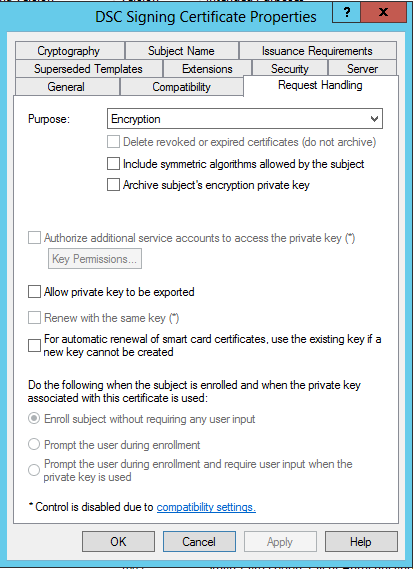
Passing credentials with DSC requires a special encryption certificate to be created, with the private key installed on the remote client and the public key accessible on the workstation where the configurations are created.
Executing a configuration will encrypt the credential with the public key so that the remote machine can decrypt and use it with it's private key.
It's worth remembering that anyone with access to the private key can decrypt the credential from the stored mof file. Mof files and private keys should be secured appropriately. Anyone with admin level access on the client will have access to the private key in the certificate store and therefore be able to decrypt the password. Any credentials used should have the minimum amount of rights to get the job done.
Credential management appears to be broken between versions 4 and 5 of the WMF. I would therefore advise installing the production release of WMF 5 on Server 2012 R2 and Windows 8.1 to ensure credentials can be encrypted and recovered properly.
To create the certificate, you can use Windows PKI and create a special template. I have detailed this process in another blog post here.
An interesting alternative, that I haven't tried myself may be to use the xDSCUtils module to bootstrap with self-signed certs.
Push a configuration with credentials
Prerequisites for the client
✔ Generate the certificate and add it to the local computer personal store on the client ( cert:\LocalComputer\My )
From your push workstation
✔ Run the following PowerShell script to export the certificate public key to the local machine. This will store the key in a local .cer b64 encoded file. The script will also generate 'configdata' for the push command.
✔ Generate the configuration .mof file with the following script
✔ Configure the LCM on the remote machine to use the correct certificate. The LCM configuration information was generated in the mof file using the LocalConfigurationManager section in the DSC-InstallApp.PS1 above. The command below will push the LCM configuration to the remote machine:
Set-DscLocalConfigurationManager -Path C:\DSC\CredentialPush -verbose
DSC Push Workstation Config
Create and execute the following .ps1 file
This will create a .mof file for dscclient.example.com and save it in C:\DSC\BasicPush.
Pushing the configuration can be done with the following command:
Start-DscConfiguration -ComputerName 'dscclient.example.com' -Path C:\DSC\BasicPush -wait -force -verbose
Set up certificates for credential usage
For most non-trivial configurations, it's likely that credentials will be required for access to installation packages or AD for example.
Passing credentials with DSC requires a special encryption certificate to be created, with the private key installed on the remote client and the public key accessible on the workstation where the configurations are created.
Executing a configuration will encrypt the credential with the public key so that the remote machine can decrypt and use it with it's private key.
It's worth remembering that anyone with access to the private key can decrypt the credential from the stored mof file. Mof files and private keys should be secured appropriately. Anyone with admin level access on the client will have access to the private key in the certificate store and therefore be able to decrypt the password. Any credentials used should have the minimum amount of rights to get the job done.
Credential management appears to be broken between versions 4 and 5 of the WMF. I would therefore advise installing the production release of WMF 5 on Server 2012 R2 and Windows 8.1 to ensure credentials can be encrypted and recovered properly.
To create the certificate, you can use Windows PKI and create a special template. I have detailed this process in another blog post here.
An interesting alternative, that I haven't tried myself may be to use the xDSCUtils module to bootstrap with self-signed certs.
Push a configuration with credentials
Prerequisites for the client
✔ Generate the certificate and add it to the local computer personal store on the client ( cert:\LocalComputer\My )
From your push workstation
New-DscClient.PS1 -ComputerName 'dscclient.example.com'
✔ Generate the configuration .mof file with the following script
✔ Configure the LCM on the remote machine to use the correct certificate. The LCM configuration information was generated in the mof file using the LocalConfigurationManager section in the DSC-InstallApp.PS1 above. The command below will push the LCM configuration to the remote machine:
✔ Execute the configuration on the remote machine.
Start-DscConfiguration -Path C:\DSC\CredentialPush -verbose -Force -Wait
✔ It's worth opening the .mof file in a text editor so that you can see the encrypted credential in the file.
Continued in part 2 - Pull Server Setup
✔ It's worth opening the .mof file in a text editor so that you can see the encrypted credential in the file.
Continued in part 2 - Pull Server Setup